
Today’s Route is Rithm’s day-of field companion on the Schedule. When you start it, Rithm shows a focused Next Stop card for today’s client visits and meetings—who to see next, when, and where—so you can get directions and check in without hunting through the full day list.
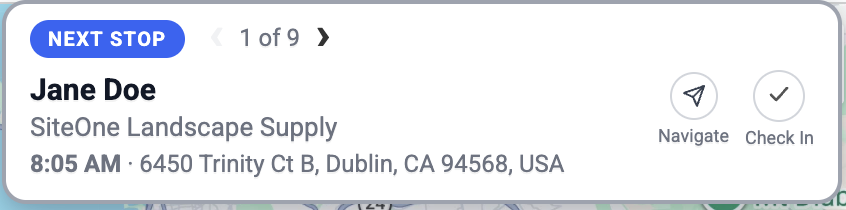
It is built for a salesperson who is already out on the territory: glance at the card, navigate to the stop, check in when you finish, then move on. Rithm keeps the card pointed at the stop that makes the most sense for the current time of day, and refreshes it automatically while the route is active.
Important: Today’s Route always uses today’s visits in your local timezone. If you browse yesterday or tomorrow on the Schedule calendar, the route card still shows today. That is intentional—so you can look ahead on the map or list without losing your live day-of guide.
Today’s Route is not the same as:
- The driving path drawn on the Schedule map for the day you are viewing
- The full day list of appointments (on mobile, the Recommended Schedule section)
- Map filters elsewhere in Rithm that draw a route for a chosen date
Those tools help you see the plan. Today’s Route helps you work the plan, stop by stop.
What is Today’s Route (Web)?
On the web Schedule, Today’s Route is started with the Start Route button. When you turn it on, a Next Stop card appears near the top of the Schedule. That card highlights one stop at a time from today’s visit-type appointments and meetings.
From the card you can:
- See the client (or organization), scheduled time, and address
- Open Navigate for turn-by-turn directions in Google Maps
- Tap Check In when the visit is done (or undo completion if you marked it by mistake)
- Step through today’s stops with the ‹ and › arrows when you have more than one stop
While the route is active, Rithm refreshes the card about every two minutes, so as the day progresses the “next” stop stays current—even if you leave the card on a different stop for a while.
Where to find it
- Sign in to Rithm in your browser.
- Open Schedule from the side menu (on smaller screens, use the Schedule item in the footer navigation).
- Look at the Schedule header near the date controls (‹, the date, ›, and Today).
- Click Start Route.
On a desktop browser, the control is a labeled button: a play-style icon plus the words Start Route.
On the web Schedule on a phone or small screen, the same control is usually an icon-only button (play-style icon) in the header—there may be no “Start Route” text label. Tap that icon to start the route. When the route is active, the icon switches to a stop-style control.
Note: Start Route is part of the current (beta) Schedule experience. If your account is still on the classic Schedule layout, you will not see this button. Use the modern Schedule view to access Today’s Route.
Nearby controls you may also see:
- Date navigation and Today
- Sales Advisor (if enabled for your account)—a separate helper, not the same as Start Route
How to use it
1. Start the route
Click Start Route (or the play icon on mobile web).
What happens:
- The button changes to End Route (red styling with a stop icon on desktop; stop-style icon on mobile web)
- The Next Stop card opens below the Schedule header
- Rithm loads today’s stops and picks the best “next” one to show first
- While loading, you may briefly see Loading next stop…
If you leave Schedule and come back later in the same browser session, Rithm remembers that the route was active and can restore the card for you.
2. Read the Next Stop card
A typical stop shows:
| Area | What you see |
|---|---|
| Status pill | Next Stop, Next Stop (Incomplete), Next Virtual Mtg, Next Virtual Mtg (Incomplete), or Completed |
| Counter | ‹ N of M › when you have more than one stop today (for example, 3 of 8) |
| Client block | Client name and, when available, organization |
| Meta line | Scheduled time in bold, then address (for example, 2:30 PM · 123 Main St…) |
| Actions | Navigate and Check In (or Completed if already done) |
How Rithm chooses the first stop
- Prefer the first stop later than the current clock time that is still incomplete.
- If there is no upcoming incomplete stop, show the first incomplete stop from earlier in the day—and the pill says (Incomplete) so you know you are catching up.
- If every stop is already completed, show the first stop of the day with a green Completed pill.
Which appointments appear on the route
The route includes today’s client visits and meetings that belong on a field path (including virtual to-dos). It does not include items that are not visit stops—such as sticky notes, goals, or email reminders. Stops appear in time order.
If there are no qualifying stops today, the card shows: No upcoming stops today.
3. Move between stops
When you have more than one stop:
- Tap › to preview the next stop
- Tap ‹ to go back
- The counter shows your place in the list (N of M)
- Arrows disable at the first and last stops
Paging is useful when plans change—skip ahead to a later office, or go back to an earlier incomplete visit. After you page away from the automatic “next” stop, Rithm still refreshes about every two minutes; that refresh can return the card to the stop that best matches the current time. If you manually move to another stop, the two-minute timer restarts so your choice stays visible for a full refresh cycle.
You do not drag-and-drop to reorder the route. Order follows the schedule times Rithm already calculated for the day.
4. Navigate to a stop
Tap Navigate on the card.
Rithm opens Google Maps directions to the client’s address in a new browser tab or window. Use that for turn-by-turn navigation on your phone or laptop.
If the client has no usable address on file, Navigate will not open a directions link. Update the client’s address in Rithm if you need driving directions next time.
5. Check in from the route
When the stop is not finished yet
- Tap Check In.
- Complete the check-in form (who you saw, visit outcome, notes, and anything else your team uses).
- Save the visit.
After a successful check-in, the route card refreshes. The status can change to Completed, and Rithm will advance its idea of the next stop on the next refresh cycle.
For some group or organization visits, Rithm may also ask whether you met every client (for example, a follow-up about completing the visit for all clients at that stop). Answer that prompt so the right people are marked complete.
When the stop already shows Completed
- The check-in control label reads Completed (green).
- Tap it if you need to undo completion (for example, you checked in by mistake). The stop returns to incomplete, and the card updates.
Check-in from the route uses the same visit recording flow you use elsewhere on Schedule; the route card is simply the fastest place to open it while you are working the day.
6. End the route
When you are done using the live next-stop guide—end of day, lunch break, or you simply want a cleaner Schedule screen—click End Route (or the stop icon on mobile web).
The Next Stop card closes, the button returns to Start Route, and the automatic refresh stops. Your appointments remain on the Schedule; you have only closed the day-of route overlay.
Tips for the web Schedule
- Use Start Route when you are actively running today’s calls. Use the normal agenda and map when you are planning or reviewing another day.
- Changing the calendar to another day does not change which stops appear on the route card—those stay locked to today.
- After you check in from the route, glance at the agenda list as well; completion and notes stay in sync with the rest of Schedule.
- The map route drawn beside the agenda is a separate visual of driving order for the day you are viewing. The Start Route card is the interactive “what’s next” tool for today.
What is Today’s Route (iPhone / iPad)?
On the Rithm iOS app, Today’s Route is route mode on the Schedule tab. When you turn it on, a next-stop card appears over the Schedule map. That card walks you through today’s visits one stop at a time.
From the card you can:
- See who is next, when they are scheduled, and the address
- Tap Navigate to open driving directions in Waze or Apple Maps (based on your Settings)
- Tap Check In to record the visit (or Completed to undo if needed)
- Use ‹ and › to page through today’s stops when there is more than one
Route mode refreshes about every two minutes while it is on, so the suggested next stop stays aligned with the clock as your day unfolds.
How this differs from the rest of Schedule on iOS
- The bottom sheet (or side list on iPad) shows your full plan for the date you selected, including the Recommended Schedule section.
- Route mode’s card always uses today’s stops, even if you picked another date on the map or calendar control.
- The map path and pins still reflect the selected date’s recommended route; the floating card is your live today guide on top of that map.
Where to find it
- Open the Rithm app and sign in.
- Tap the Schedule tab at the bottom (calendar icon).
- In the top toolbar, tap the turn-right arrow button (accessibility label: Start route mode).
That control sits with the other Schedule toolbar actions (such as Sales Advisor, sticky notes, and + for a new meeting). The screen title area shows the weekday and date in the center.
When route mode is on, the same toolbar button becomes a filled stop icon (accessibility label: Stop route mode). Tap it again to turn the route off.
iPhone vs iPad
- On iPhone, the next-stop card overlays the top of the map; the schedule list stays in the bottom sheet underneath.
- On iPad, the card appears above the split list-and-map layout in a similar way.
Route mode can stay on across app launches until you turn it off or sign out. That way you can jump back into Schedule mid-day and pick up where you left off.
How to use it
1. Start route mode
On Schedule, tap the turn-right toolbar button (Start route mode).
What happens:
- The button switches to the stop control (Stop route mode)
- The next-stop card appears over the map
- Rithm loads today’s stops and selects the best next stop
- While loading with no stops yet, you may see Your next stop is… with a spinner
If nothing qualifies for today’s route, the card shows: No upcoming stops today.
2. Read the next-stop card
A typical stop shows:
| Area | What you see |
|---|---|
| Status pill | Next Stop, Next Stop (Not Completed), Next Virtual Mtg, Next Virtual Mtg (Not Completed), or Completed |
| Counter | ‹ N of M › when there is more than one stop |
| Client block | Client or organization name (group stops may show a name ending with and others) |
| Meta line | Time in bold, then address (for example, 2:30 PM · 123 Main St…) |
| Actions | Navigate (car icon) and Check In / Completed (checkmark icon) |
How Rithm chooses the first stop (same idea as the web app)
- Prefer the first incomplete stop that is still later than the current time.
- If none, show the first incomplete stop from earlier today—the pill uses (Not Completed) so you know you are catching up.
- If all stops are done, show the first stop with a green Completed pill.
Which stops appear
Route mode includes today’s visit-style schedule items (client visits and meetings, including virtual to-dos), sorted by time. Items that are not field stops—such as sticky notes—do not appear on this card.
Wording difference vs web: On iOS the catch-up labels say Not Completed; on the web they say Incomplete. The meaning is the same.
3. Move between stops
When you have multiple stops today:
- Tap › to look at a later stop
- Tap ‹ to go back
- The middle label shows N of M
- Previous is disabled on stop 1; next is disabled on the last stop
Use this when you rearrange your afternoon on the fly—jump ahead to a closer office, then come back. After you page away, the two-minute refresh can eventually return the card to the stop that best matches the current time. Manually changing stops restarts that timer so your selection stays up for a full cycle.
There is no drag-to-reorder on the route card. Order comes from the day’s scheduled times.
4. Navigate to a stop
Tap Navigate.
Rithm opens your preferred driving app:
- Waze (default), or
- Apple Maps
To choose the app: open Settings in Rithm and set Driving directions to Waze or Apple Maps.
Directions use the client’s location (and, for Apple Maps, your current location as the start). If location or address data is missing, directions may not open—confirm the client address in Rithm and that Location services are available when needed.
Navigate opens the external maps app; it does not automatically pan the in-app Schedule map to that pin.
5. Check in from the route
When the stop is not finished
- Tap Check In.
- The Check In screen opens (full screen over the Schedule chrome).
- Record the visit details your team uses—for example:
- Who did you see? (Doctor, Office Manager, Nurse / MA, Front Desk, Nobody (busy), and similar options)
- Outcome (Discussed Product, Sampled, Left Information, Follow-up Needed, Lunch Only, No Access, and similar options)
- Client Notes, last visit notes, and optional Quick Notes
- Tap Completed to save (the button may show Saving… while it works).
- Confirm success screens such as Visit Completed or Visit Recorded, then Done.
Group / multi-client stops
If the stop is for more than one client, Rithm may ask Completed for every client? after you save. Choose the option that matches what happened (for example, yes for all, only some, or that you need to come back). That keeps each person at the office correctly marked.
If a stop cannot open the check-in form (rare—usually a missing client link), Rithm may fall back to the meeting / notes editor so you can still update the appointment.
You may also see a warning if the client is marked Do not visit—read it carefully before finishing the call.
When the stop already shows Completed
- The action label reads Completed with a filled green checkmark.
- Tap it to mark the stop incomplete again if you need to correct a mistake. The card and Schedule list refresh afterward.
Check-in from the route is the same visit recording experience you use from schedule rows elsewhere; the card simply puts it one tap away while you are driving the day.
6. Stop route mode
Tap the stop icon in the toolbar (Stop route mode) when you no longer need the floating next-stop card.
The card hides and the automatic refresh stops. Your Schedule list, map, and Recommended Schedule remain available. Turn route mode back on anytime with the turn-right button.
Working with the rest of Schedule on iOS
While route mode is on, you can still:
- Scroll the bottom sheet (iPhone) or list (iPad) for Notifications, My appointments, Recommended Schedule, nearby clients, and related sections
- Open a client from a list row for full detail
- Reschedule or edit notes from list rows when you need more than the quick route actions
- Pan and zoom the map underneath the card
Remember: changing the selected date updates the list and map for that date, but the route card continues to show today. Use that on purpose—for example, peek at tomorrow’s recommended path on the map while the card still guides this afternoon’s calls.
Empty day messaging such as Schedule is empty for today applies to the selected day’s list/map, not only to route mode. Route mode’s own empty message is No upcoming stops today.
Tips for iOS
- Start route mode when you leave for the first call; leave it on through the day so the card stays current.
- Set Driving directions once in Settings so Navigate always opens the app you prefer.
- Use ‹ › when traffic or cancellations change your order; let the two-minute refresh bring you back to “true next” when you are ready.
- Use Check In from the card immediately after each visit so the next stop suggestion stays accurate.
- Sign-out clears route mode; you will start it again next time you need it.
Web and mobile at a glance
| Topic | Web UI | Mobile UI (iOS) |
|---|---|---|
| Where | Schedule → Start Route | Schedule tab → turn-right toolbar button |
| Turn off | End Route | Stop icon (Stop route mode) |
| Card focus | Always today’s stops | Always today’s stops |
| Directions | Google Maps | Waze or Apple Maps (Settings → Driving directions) |
| Catch-up label | (Incomplete) | (Not Completed) |
| Persistence | Remembers within the browser session | Can remain on across app launches until you stop it or sign out |
| Full day plan | Agenda / map for the day you are viewing | Sheet list including Recommended Schedule for the selected date |
Whether you are on the website or the iOS app, the goal is the same: know the next stop, get there, check in, and keep moving through today’s route with less friction.